
Reports Section
Keyboard shortcut: Ctrl + Alt + O
When a rDCF report is generated, the report opens as a fully functioning Excel model (viewable and printable within Excel). Benefits of generating reports in Excel include:
- Formulas used for calculations are included within the models, facilitating auditability thereof and removing the black box “Where did this number come from?” issue that is prevalent with other software applications.
- Enhanced formatting for cleaner looking reports, and the ability for the user to change formatting as desired.
- The ability to perform additional, user-defined analysis directly in the report. Because the report renders in Excel, any Excel spreadsheet functionality is available at the fingertips of the user.
Article contents:
rDCF Reports, Excel, & Downloads
Note: rDCF interacts with the version of Excel installed on the user’s computer. In some cases, enhanced Excel security settings may be enabled that will require the user to click the “Enable Editing” button for the report to render properly. If the “Enable Editing” button is not clicked within Excel when the report renders, formatting and or data presentation may be insufficient. Therefore, click the “Enable Editing” button whenever a report renders if so required by the security settings in your version of Excel.
Recommendation: When a rDCF report renders in Excel, the report is automatically saved within the “Downloads” folder on your computer (or another folder if the user has adjusted their web browser settings) with a default name of "<PropertyName><ReportName><DateGenerated><TimeGenerated>". As the quantity of reports generated from within rDCF increases, the number of reports in your “Downloads” folder will likewise increase. Therefore, it is recommended that you periodically clear your “Downloads” folder to prevent the amount of data storage on your computer from becoming unnecessarily large.
Alert: A property is required to be calculated prior to generating a report.
If the property is uncalculated, the following message will display upon pressing the "Run Report" button:
"Error: Must calculate property before running report"
Click the "Calc Property" button  or press Ctrl + Alt + C to calculate the property, at which time the report may be generated.
Once the property is calculated, perform the following procedures to generate the report:
- Select the report to be generated from the report list in the left-side panel; the settings for that report will appear in the right-side panel.
- Enter the desired report settings in the right-side panel.
- Click the "Run Report" button to generate the report.
Note: Every report will contain two tabs labeled "Run Time Parameters" and "Validation Warnings." The "Run Time Parameters" tab will display (i) the date and time the report was generated; (ii) the date and time the property was last calculated; (iii) the date and time the property was last updated; and (iv) the settings that were selected to generate the report. The "Validation Warnings" tab will summarize any input validation warnings that existed when the report was generated.
Multifamily Reports
The following reports are available for multifamily property types:
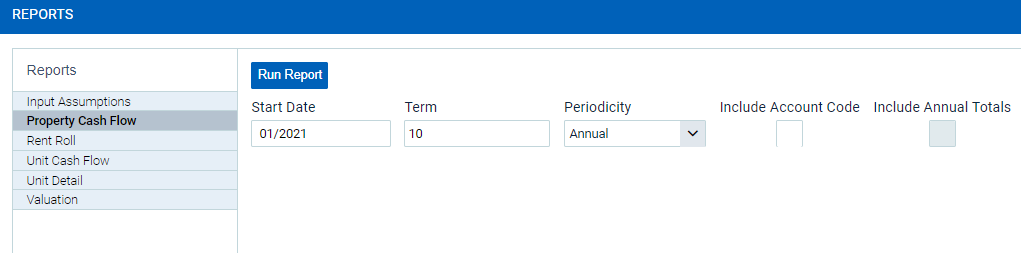
Property Cash Flow
Purpose:
To present the projected revenues, expenses and capital expenditures for a property over a specified term in order to calculate net operating income and net cash flow.
Settings:
Start Date: Defaults to the Report Begin date as entered on the Property Settings tab in the Property section. Default date may be changed but may not be earlier than the Analysis Begin date.
Term: Reflects the desired number of years for the report. Defaults to the lesser of (i) the maximum Term based upon the Analysis Begin, Report Begin, and Term as entered on the Property Settings tab in the Property section plus 1 year; or (ii) 10 years. The default term may be changed but may not exceed the maximum Term per (i) above.
Periodicity: Defines the time periods to be displayed on the report. Choices are “Annual”, “Monthly” or “Quarterly.”
Include Account Code: Determines whether the Code for Line Items will be displayed. The default is unchecked, whereby only the Line Item Names display on the report. If checked, both the Line Item Codes and Names will display on the report.
Include Annual Totals: Available only if the Report Type is set to “Monthly” or Quarterly”. The default is unchecked, whereby Annual Totals will not be displayed. If checked, an additional column for each year will be included on the report that displays the summation of the monthly or quarterly amounts for such year.
Rent Roll
Purpose:
To present all of the data and assumptions entered entered on the Rent Roll tab for review.
Settings:
There are no settings for this report.
Unit Cash Flow
Purpose:
To present the projected revenues received and capital incurred in the calculation of net cash flow for each unit type within a property.
Settings:
Start Date: Defaults to the Report Begin date as entered on the Property Settings tab in the Property section. Default date may be changed but may not be earlier than the Analysis Begin date.
Term: Reflects the desired number of years for the report. Defaults to the lesser of (i) the maximum Term based upon the Analysis Begin, Report Begin, and Term as entered on the Property Settings tab in the Property section plus 1 year; or (ii) 10 years. The default term may be changed but may not exceed the maximum Term per (i) above.
Periodicity: Defines the time periods to be displayed on the report. Choices are “Annual”, “Monthly” or “Quarterly”.
Include Annual Totals: Available only if the Report Type is set to “Monthly” or Quarterly”. The default is unchecked, whereby Annual Totals will not be displayed. If checked, an additional column for each year will be included on the report that displays the summation of the monthly or quarterly amounts for such year.
Select those Unit Types to be included on the report by checking the applicable box. The default setting is all unit types (all boxes are checked). Clicking on a unit type name will either select (box is checked) or deselect (box is unchecked) such unit type for inclusion on the report. Click the box below the header “Units” to either select all unit types (box is checked) or deselect all unit types (box is unchecked).
Note: If more than one unit type is selected, each unit type will appear on a separate tab within the Excel workbook.
Alert: At least one unit type must be selected for the report to run.
Unit Detail
Purpose:
To present the calculated results related to occupancy, revenues and tenant capital (make ready and commissions) on a unit type-by-unit type basis. This report may be used to determine the composition of line items on the Cash Flow report by unit type.
Settings:
Start Date: Defaults to the Report Begin date as entered on the Property Settings tab in the Property section. Default date may be changed but may not be earlier than the Analysis Begin date.
Term: Reflects the desired number of years for the report. Defaults to the lesser of (i) the maximum Term based upon the Analysis Begin, Report Begin, and Term as entered on the Property Settings tab in the Property section plus 1 year; or (ii) 10 years. The default term may be changed but may not exceed the maximum Term per (i) above.
Periodicity: Defines the time periods to be displayed on the report. Choices are “Annual”, “Monthly” or “Quarterly”.
Include Annual Totals: Available only if the Report Type is set to “Monthly” or Quarterly”. The default is unchecked, whereby Annual Totals will not be displayed. If checked, an additional column for each year will be included on the report that displays the summation of the monthly or quarterly amounts for such year.
Amount Type:
- Amount (default): Displays the selected unit detail items as full amounts rather than on a per area or per unit basis.
- Rollover Breakout: Displays the selected unit detail items as full amounts with unit type detail broken out by Initially Occupied Units, Vacant Unit Lease-Up, Rollover to Contractual Rents and Rollover to Market Rents.
- Per Area: Displays the selected unit detail items on a per area basis by dividing the amount by the unit area leased.
- Per Unit: Displays the selected unit detail items on a per unit basis by dividing the amount by the number of units leased.
Helpful Hint: If Rollover Breakout is selected, it is recommended that the report be run on a monthly basis.
Select those Unit Types to be included on the report by checking the applicable box. The default setting is all unit types (all boxes are checked). Clicking on a unit type name will either select (box is checked) or deselect (box is unchecked) such unit type for inclusion on the report. Click the box below the header “Units” to either select all unit types (box is checked) or deselect all unit types (box is unchecked).
Alert: At least one unit type must be selected for the report to run.
Select the Report Items to be included on the report by checking the applicable boxes. The default setting is all Report Items (all boxes are checked). Clicking on a Report Item name will either select (box is checked) or deselect (box is unchecked) such item for inclusion on the report. Click the “Deselect All” button to uncheck any boxes that have been previously checked. If no boxes are checked, the “Deselect All” button will change to “Select All”, which if clicked will result in all boxes being checked.
Alert: At least one Report Item must be selected for the report to run.
Valuation
Purpose:
To provide (i) property valuation calculation and valuation matrix for one or multiple Valuation Scenarios; and (ii) provide a summary of the cash flows used for the valuation.
Settings:
Valuation Scenario: Select the Valuation Scenario(s) to be included on the report. The default setting is the Default Valuation Scenario as defined on the Valuation Settings tab in the Property section. Clicking on a scenario #/name will either select (box is checked) or deselect (box is unchecked) such scenario for inclusion on the report. If multiple boxes are checked, each scenario will appear on a separate tab in the report. Click the "Select All" button to check all boxes and select all scenarios. If all boxes are checked, the "Select All" button will change to "Deselect All," which if clicked, will uncheck any boxes that have been previously checked.
Input Assumptions
Purpose:
To provide a summary of all assumptions input into rDCF for a multifamily property. This report may be used (i) as an audit tool to verify that data input is correct; and (ii) to review property files received from third parties to gain an understanding of the assumptions contained therein.
Settings:
Object Type: Select those data entry categories to be included on the report by checking the applicable box. The default setting is all categories (all boxes are checked). Clicking on a category name will either select (box is checked) or deselect (box is unchecked) such category for inclusion on the report. Click the “Deselect All” button to uncheck any boxes that have been previously checked. If no boxes are checked, the “Deselect All” button will change to “Select All”, which if clicked will result in all boxes being checked.
Alert: At least one category must be selected for the report to run.
Comments
0 comments
Article is closed for comments.