
This is the current list of web browsers supported by rBudget:
- Google Chrome (recommended)
- Internet Explorer 11
Info: Windows 10 includes IE11 but automatically sets their new browser, Edge, as the default. Search for Internet Explorer and pin to Start and/or add a shortcut on your desktop. Then, go to your Default Programs and set IE11 or Google Chrome as your default browser.
Alert: The application is not Mac-Apple compatible, i.e., rBudget does not support Safari using either an Apple computer, iPad or Safari for Windows. The application is not compatible with Mozilla Firefox. The app is not compatible with Microsoft Edge.
Google Chrome
Download Chrome
https://www.google.com/chrome/
Chrome Help Center
https://support.google.com/chrome/?hl=en#topic=3227046
Clear cache
When rSquared periodically updates their applications, sometimes the update(s) can cause issues (e.g., log in, report generation). Most often these issues are resolved by clearing the cache.
Ctrl+Shift+Delete opens the "clear browsing data" window.
https://support.google.com/chrome/answer/2392709?hl=en&ref_topic=7438008
Google Chrome Tips & Recommendations
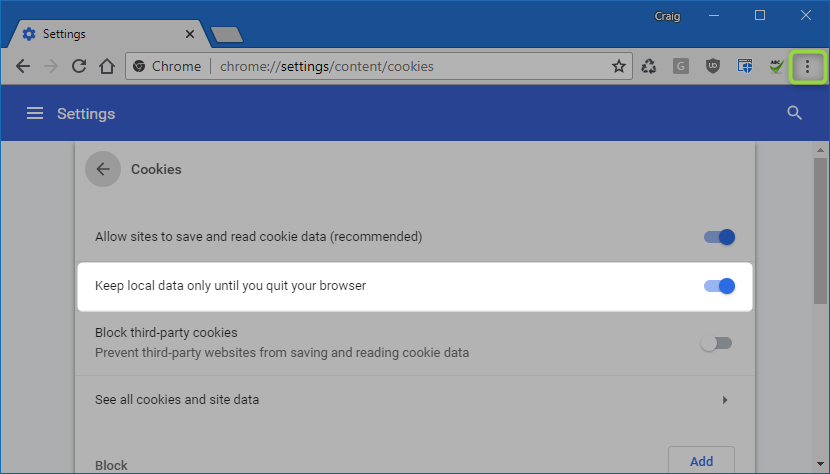
Delete cache upon browser exit
Settings > Advanced > Controls settings > Cookies > "Keep local data only until you quit browser > (TURN ON) button
Reports, Exports & Downloads
Chrome automatically downloads when exporting reports or templates and drops these files in your "Downloads" folder.
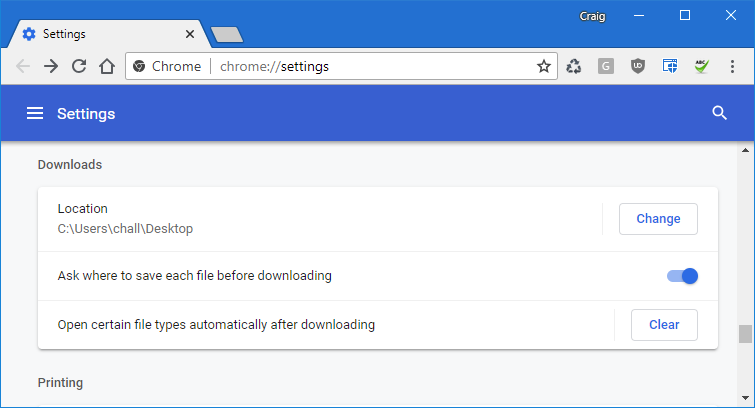
You can open your Chrome Settings > Advanced > Downloads > Location > Change and pick a different location, but Chrome will always automatically download these files. Be aware that you may want to clean this folder periodically.
Additionally, you can turn on "Ask where to save each file before downloading."
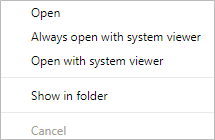
Furthermore, when exporting files (e.g., PDFs and other file types), the file will automatically download to your "Downloads" folder or the folder to which is set and a link will appear at the bottom of the browser:
- "Always open with system viewer" will open all downloaded files in their assigned default application (e.g., Excel, Adobe, Word, etc.). This will persist until you "Clear" "Open certain file types automatically after downloading." (see screenshot above)
- "Open with system viewer" will just open the current file and not persist.
Prevent this page from creating additional dialoges
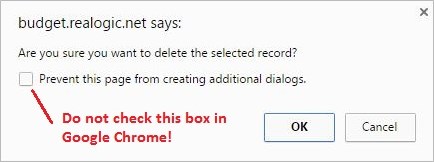
When using the Delete and Copy buttons throughout the app, you may receive a confirmation pop-up window.
Do not check the box that states, "Prevents this page from creating additional dialogs." This will cause the inability of deleting and/or copying named items, detailed lines, etc.
Comments
0 comments
Article is closed for comments.