
Multifamily Section & Tabs
Keyboard shortcut: Ctrl + Alt + M
The Multifamily section is where a user can:
- Manage rent roll records for occupied and vacant multifamily units at a property, including in-place and market assumptions
- Define line item records (miscellaneous revenues, expenses and building capital) for a property
- Manage inflation named items
- Define and manage Area Measure for a property
Many of the data inputs in this section of the application rely on the use of input carousels. For instructions on how to use an input carousel, click here.
Article contents:
Rent Roll
Ctrl + Alt displays the numeric keyboard shortcut.
The Rent Roll tab is used to model:
- Unit inventory for the property, including both occupied and vacant units
- Lease-up assumptions for vacant units
- Rental terms for both currently occupied and market units
- Costs associated with leasing up space, including make-ready costs and commissions
- Credit loss and vacancy allowance
Rent Roll Columns
Unit Description
Unit Description (required) identifies the unit type (i.e., 1BR/1BA) with a 30-character maximum.
Note: If the Rent Roll is entered on a unit-by-unit basis, the Unit Description would be used to identify the name of the current occupant of the unit.
Unit Start
Unit Start (required) defines the date that the unit is activated for calculation purposes (no calculations are done prior to this date). Press the Enter key to activate the screen for data entry. The Unit Start date may be entered as either:
- The Analysis Begin date as defined in the Property section on the Property Settings screen (this is the default setting when a new record is added on the Rent Roll); or
- An absolute date, i.e., MM/YYYY (such date must fall within the Analysis Term as defined in the Property section on the Property Settings screen), or a relative date reflecting the number of months (#) relative to the Analysis Begin date (e.g., 13 would indicate the first month of the second year of the analysis term).
Unit End
Unit End (required) defines the date that the unit is deactivated for calculation purposes (no calculations are done after this date). Press the Enter key to activate the screen for data entry. The Unit End date may be entered as either:
- The Analysis End date as defined in the Property section on the Property Settings screen, calculated as the Analysis Begin date plus the number of years of Term (this is the default setting when a new record is added on the Rent Roll); or
- An absolute date. i.e. MM/YYYY (such date must fall within the Analysis Term as defined in the Property section on the Property Settings screen), or a relative date reflecting the number of months (#) relative to the Analysis Begin date (e.g., 60 would indicate the last month of the fifth year of the analysis).
Area
Area (required) is used to enter the average area per unit for all the units included within the unit type record. If there are units of different sizes included within the unit type record, the average area would be entered here.
Example: A multifamily property has 30 1 BR/1 BA units, 15 of which are 600 square feet, 10 of which are 650 square feet and 5 of which are 700 square feet. If all 30 units are entered within one 1 BR/1 BA record on the Rent Roll, the average area to be entered would be 633.33 square feet. Alternatively, three separate 1 BR/1 BA records could be entered on the Rent Roll using the exact square footage (i.e., the first record would have 15 units of 500 square feet, the second record would have 10 units of 650 square feet and the third record would have 5 units of 700 square feet).
Helpful Hint: If the area of a unit record changes during the analysis period (for example, due to a reconfiguration of the property), use the Unit End field to end the original record and add an additional record with a Unit Start date that is subsequent to the Unit End date of the original record to reflect the revised area.
Unit Inventory (Total, Occupied & Vacant)
Total Units and Occupied Units (both required) are used to enter the total number of units and the number of occupied units as of the Unit Start date for the applicable unit type record. The number of Vacant Units is non-editable and will auto-calculate as the difference between Total Units and Occupied Units.
Helpful Hint: If the Total Units for a unit record changes during the analysis period (for example, due to a reconfiguration of the property), use the Unit End field to end the original record and add an additional record with a Unit Start date that is subsequent to the Unit End date of the original record to reflect the revised number of Total Units.
Occupied Unit Rollover
Occupied Unit Rollover is used to define (i) the period during which the number of initially Occupied Units will expire; and (ii) the assumed percentage of such units for which rent will roll to market.
Press the Enter key to input data in either a Basic or Detailed state.
Basic Occupied Unit Rollover
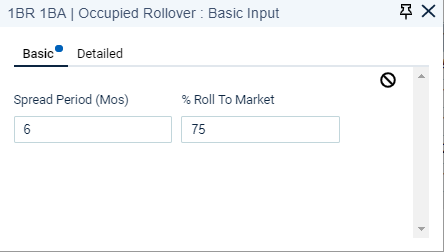
Basic Occupied Unit Rollover is used (i) to spread the expiration of the initial number of Occupied Units evenly over the number of months entered; and (ii) to define the percentage of expiring units that will roll to market rents versus remaining at the occupied unit rent.
Spread Period (Mos) is the average number of months over which initially Occupied Units will expire.
Example: A multifamily property has 60 1BR/1BA units, 48 of which are initially occupied and 12 of which are vacant. The expiration of the initially occupied units is entered using the Basic state with a 6-month spread period. The result is that 8 of the initially occupied 1BR/1BA units will expire each month during the initial 6 months after the Unit Start Date. If the Unit Start date is set to the Analysis Begin date, and the Analysis Begin date is defined as 1/2021, then 8 initially Occupied Units would expire in each of the following months: 1/2021, 2/2021, 3/2021, 4/2021, 5/2021 and 6/2021.
% Roll to Market defines the percentage of expiring units that will roll to market rent versus remaining at the occupied unit rent. This percentage is applied to both the initial expiration of Occupied Units and all expirations thereafter.
Example: Continuing the example above, if the % Roll to Market is defined as 75%, then at the original expiration dates of the 48 initially Occupied Units, 36 will roll to market rents and 12 will roll to occupied units rent. At the following expiration dates (as defined by the Market Term entry), 9 of the units that previously rolled to occupied units rent will roll to market rent and 3 of such units will once again roll to the occupied units rent. The % Roll to Market will continue to be used for all future expirations of units utilizing the occupied units’ rental rate.
Basic Occupied Unit Rollover
Detailed Occupied Unit Rollover
Detailed Occupied Unit Rollover is used (i) to define specific dates when the number of initially Occupied Units will expire; and (ii) to define the percentage of expiring units that will roll to market rents versus remaining at the occupied unit rent.
% Roll to Market defines the percentage of expiring units that will roll to market rent versus remaining at the occupied unit rent. This percentage is applied to both the initial expiration of Occupied Units and all expirations thereafter.
Date reflects when the initially Occupied Units will expire. Enter absolute (A – MM/YYYY) or relative (R - Months) dates. Relative dates are relative to the active unit type record Unit Start date.
Warning: All dates entered for a record must be either absolute or relative. The date type cannot be mixed within a record.
Units Expiring reflects the number of units that will expire on the corresponding date.
Warning: The total number of Units Expiring entered within the detailed state must equal the total number of Occupied Units or a validation warning will appear.
 adds a row beneath the current row,
  deletes the current row.
Detailed Occupied Unit Rollover

Vacant Lease-Up
Vacant Lease-Up is used to define the period during which the number of initially Vacant Units will be leased-up at market terms.
Press the Enter key to input data in either a Basic or Detailed state.
Basic Vacant Lease-Up
Basic Vacant Lease-Up is used to spread the lease-up of the initial number of Vacant Units evenly over the number of months entered.
Begin Date reflects the date upon which the lease-up of Vacant Units will commence. Enter an absolute (A – MM/YYYY) or relative (R - #) date. Relative date is relative to the active unit type record Unit Start date.
Leaseup Mos reflects that total number of months over which the lease-up of initial Vacant Units will be spread.
Example: A multifamily property has 60 1BR/1BA units, 48 of which are initially occupied and 12 of which are vacant. The lease-up of the initially vacant units is entered using the Basic state with a Begin Date of month 2 and Leaseup Mos of 12. The result is that 1 of the initially vacant 1BR/1BA units will lease-up each month during the 12-month period commencing in month 2 after the Unit Start date. If the Unit Start date is set to the Analysis Begin date, and the Analysis Begin date is defined as 1/2021, then 1 initially Vacant Unit would lease-up in each month between 2/2021 and 1/2022.
Basic Vacant Lease-Up

Detailed Vacant Lease-Up
Detailed Vacant Lease-Up is used to define specific dates when the number of initial Vacant Units will be leased-up.
Date reflects when the initially Vacant Units will be leased-up. Enter absolute (A – MM/YYYY) or relative (R - Months) dates. Relative dates are relative to the active unit type record Unit Start date.
Warning: All dates entered for a record must be either absolute or relative. The date type cannot be mixed within a record.
Units Leased reflects the number of Vacant Units that will lease-up on the corresponding date.
adds a row beneath the current row, deletes the current row.
Detailed Vacant Lease-Up

Market Term
Market Term is used to define the assumed lease term for the (i) lease-up of Vacant Units; (ii) rollover of initially Occupied Units; and (iii) all future rollovers of the units described in (i) and (ii) above.
Enter the market term in months.
Helpful Hint: For multifamily properties, the Market Term assumption is typically 12 months.
Rent
Rent is used to define (i) rent for currently occupied units; and (ii) market rent.
Helpful Hint: Rent for currently occupied units is typically obtained by taking an average of all rents for the specific unit type as obtained from a property Rent Roll as of a specific date.
Press the Enter key to input data in either a Basic or Detailed state.
Basic Rent
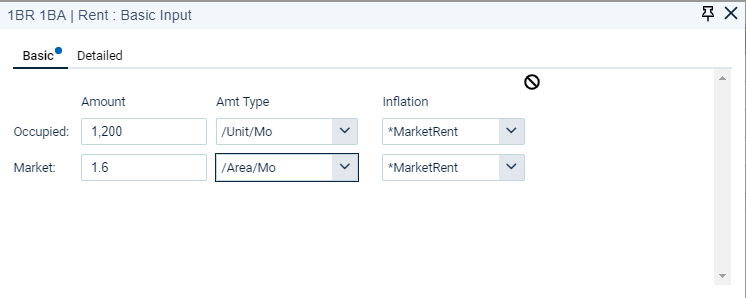
Basic Rent is used to enter a single amount of rent for both occupied units and market units with optional named inflation.
Amount is the amount of rent as of the Analysis Begin date as set in the Property section on the Property Settings tab.
Amt Type interprets the Amount value. Options include:
- /Area/Mo is the monthly Amount per area.
- /Area/Yr is the annual Amount per area.
- /Unit/Mo is the monthly Amount per unit.
- /Unit/Yr is the annual Amount per unit.
Example: The average rent for occupied 1BR/1BA units per a current Rent Roll is $1,200/month. The average Area for a 1BR/1BA unit is 800 square feet. Occupied Rent could be entered as:
- $1,200/Unit/Mo
- $14,400/Unit/Yr
- $1.50/Area/Mo
- $18.00/Area/Yr
Inflation is a drop-down menu of named item expedites created and defined in the Multifamily section on the Inflation tab. Upon initial entry, *Market Rent" is the default, but can be changed to any named inflation rate. The month on which inflation will be effective is based upon the entry in the Effective Month field on the Inflation tab.
Basic Rent
Detailed Rent
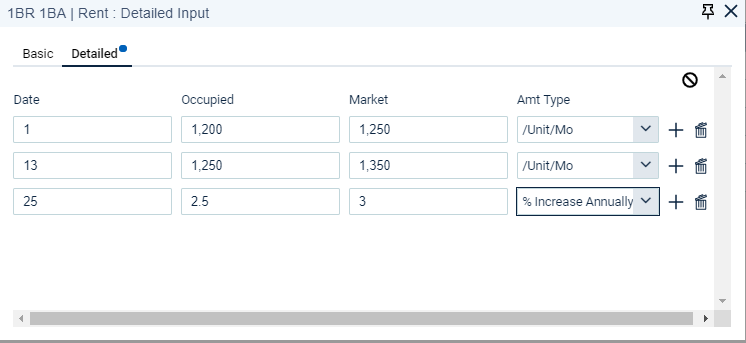
Detailed Rent is used when there are multiple amounts and input types associated with irregular rent structures for occupied and/or market units, i.e., user specified input over time.
Date the rent change commences. Enter absolute (A – MM/YYYY) or relative (R – Months) dates. Relative dates are relative to the Analysis Begin date as set in the Property section on the Property Settings tab.
Note: The rent assumption for the last date entered will carry through for the remainder of the Analysis Term.
Amount (Occupied and Market) is the amount of rent as of the date entered in the Date field. Amounts are entered for both Market and Occupied units as of the specific date and must therefore use the same Amt Type.
Amt Type interprets the Amount value. Options include:
- /Area/Mo is the monthly Amount per area.
- /Area/Yr is the annual Amount per area.
- /Unit/Mo is the monthly Amount per unit.
- /Unit/Yr is the annual Amount per unit.
- % Increase is a one-time percentage value increase on the corresponding Date.
- % Increase Annually is an annual percentage increase commencing on the corresponding Date and on each annual anniversary thereafter throughout the Analysis term.
- $ Increase is a one-time dollar amount increase on the corresponding Date.
- $ Increase Annually is a dollar amount increase commencing on the corresponding Date and on each annual anniversary thereafter throughout the Analysis term.
Helpful Hint: For Detailed Rent, there is no Inflation field. To inflate the rent amounts, add an additional row, enter the date that rent inflation should begin and the inflation percentages for occupied and market rent, and select and Amt Type of "% Increase Annually". For additional guidance, see the example below.
adds a row beneath the current row, deletes the current row.
Detailed Rent
Free Rent
Free Rent is tenant rent that is forgiven for a specified time period for currently occupied units and/or market units.
Press the Enter key to input data in either a Basic or Detailed state.
Basic Free Rent
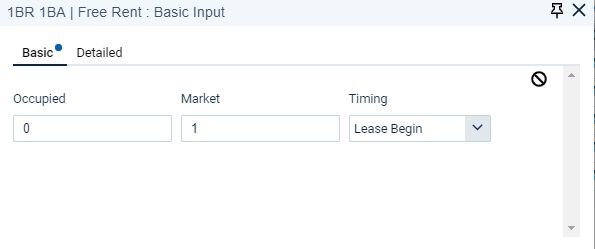
Basic Free Rent is used to enter a single number of months of free rent that applies throughout the entire analysis period for occupied units and market units with a single timing option.
Occupied is the number of months of free rent for Occupied Units. Fractional months are allowed. Free rent for Occupied Units is applied only to units occupied as of the Unit Start date. Initially Occupied Units that are assumed to renew (i.e., continue to be occupied by the same tenant) in the future do not receive free rent upon renewal.
Market is the number of months of free rent for Market Units. Fractional months are allowed. Free rent applies to all Market Units (i.e., Initially Occupied Units that are assumed to roll to market, vacant lease-up units and Market Units that are assumed to roll to new market leases).
Timing determines when during the lease term the free rent will be granted:
- Lease Begin: Number of months of free rent will be given at the beginning of the lease term (i.e., if free rent is defined as 1 month and the lease term is 12 months, the first month of rent during the lease term will be abated).
- Spread Evenly: Number of months of free rent will be spread evenly throughout the lease term (i.e., if free rent is defined as 1 month and the lease term is 12 months, 1/12th of rent will be abated during each month).
- Lease End: Number of months of free rent will be given at the end of the lease term (i.e., if free rent is defined as 1 month and the lease term is 12 months, the 12th month of rent during the lease term will be abated).
Basic Free Rent
Detailed Free Rent
Detailed Free Rent is used to enter months of free rent that vary during the analysis period for occupied units and market units with a single timing option.
Timing determines when during the lease term the free rent will be granted:
- Lease Begin: Number of months of free rent will be given at the beginning of the lease term (i.e., if free rent is defined as 1 month and the lease term is 12 months, the first month of rent during the lease term will be abated).
- Spread Evenly: Number of months of free rent will be spread evenly throughout the lease term (i.e., if free rent is defined as 1 month and the lease term is 12 months, 1/12th of rent will be abated during each month).
- Lease End: Number of months of free rent will be given at the end of the lease term (i.e., if free rent is defined as 1 month and the lease term is 12 months, the 12th month of rent during the lease term will be abated).
Date reflects that date that the number of months of free rent changes. Enter absolute (A – MM/YYYY) or relative (R – Months) dates. Relative dates are relative to the Analysis Begin date as set in the Property section on the Property Settings tab.
Note: The free rent assumption for the last date entered will carry through for the remainder of the Analysis Term.
Occupied is the number of months of free rent for Occupied Units as of the date entered in the Date field. Fractional months are allowed. Free rent for Occupied Units is applied only to units occupied as of the Unit Start date. Initially Occupied Units that are assumed to renew (i.e., continue to be occupied by the same tenant) in the future do not receive free rent upon renewal.
Market is the number of months of free rent for Market Units as of the date entered in the Date field. Fractional months are allowed. Free rent applies to all Market Units (i.e., Initially Occupied Units that are assumed to roll to market, vacant lease-up units and Market Units that are assumed to roll to new market leases).
adds a row beneath the current row, deletes the current row.
Detailed Free Rent

Make Ready Costs & Commissions
Make Ready Costs & Commissions are costs incurred by the landlord with the leasing of units by tenants. Make Ready Costs reflect standard, recurring costs incurred by the landlord upon the rollover of multifamily units and, therefore, are classified as property expenses that are deducted from revenue in the calculation of Net Operating Income. Commissions reflect fees paid to brokers in the leasing of multifamily space and are classified as building capital that is deducted from Net Operating Income in the calculation of Net Cash Flow.
Make Ready Costs and Commissions apply only to Market Units (i.e., Initially Occupied Units that are assumed to roll to market, vacant lease-up units and Market Units that are assumed to roll to new market leases). Initially Occupied Units that are assumed to renew (i.e., continue to be occupied by the same tenant) in the future do not receive Make Ready Costs or Commissions upon renewal.
Note: Make Ready Costs and Commissions operate in the same manner and, therefore, have the same input selection options.
Note: All Make Ready and Commission costs are assumed to be incurred at the commencement of a multifamily lease.
Press the Enter key to input data in either a Basic or Detailed state
Basic Make Ready Costs & Commissions
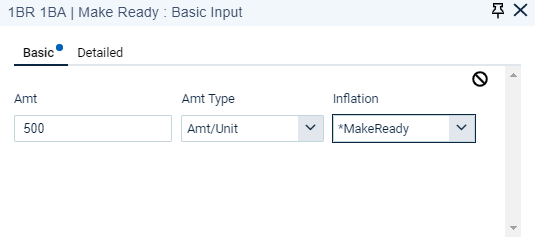
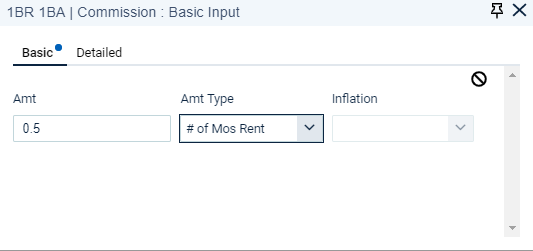
Basic Make Ready Costs and Commissions are used to enter a single value (amount, percentage, or number) with named inflation.
Amt is the amt/area, amt/unit, percentage, or number as interpreted by the entry in the Amt Type field. Percentages are entered as whole numbers (e.g., for 3%, enter “3”, not “0.03”).
Amt Type interprets the Amt value. Options include:
- Amt/Area is the value expressed as a dollar amount per area (for example, if Make Ready costs for 1BR/1BA units are defined as $0.50/area and the area of a 1BR/1BA unit is 600 square feet, then the make ready cost for that unit would be $300).
- Amt/Unit is the value expressed as a dollar amount per unit (for example, if Make Ready costs for 1BR/1BA units are defined as $400/unit, then the make ready cost for a single 1BR/1BA unit would be $400).
- % of Rent Paid is the percentage entered multiplied by the entire amount of Rent paid by tenant during the lease term, net of Free Rent (for example, if a tenant is paying $1,000/month for a 1BR/1BA unit with 1 month of abatement, and commissions are defined as 3% of Rent Paid, then the commissions for the leasing of that unit would be $330 [$11,000 in total rent paid x 3% = $330]).
- # of Mos Rent is the number of months of rent that will be paid for make ready costs or commissions. Fractional months are allowed (for example, if a tenant is paying $1,000/month for a 1BR/1BA unit and commissions are defined as 0.5 months, then the commissions for the leasing of that unit would be $500).
Inflation is a drop-down menu of named item expedites created and defined in the Multifamily section on the Inflation tab. The month on which inflation will be effective is based upon the entry in the Effective Month field on the Inflation tab.
Note: Inflation is only applicable when Amt Type is set to “Amt/Area” or “Amt/Unit”.
Basic Make Ready Costs
Basic Commissions
Detailed Make Ready Costs & Commissions
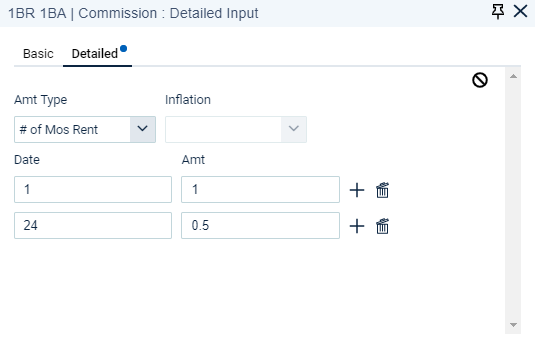
Detailed Make Ready Costs and Commissions allows for changing values (amount, percentage, or number) over the analysis period. For example, in an improving market it might be assumed that make ready costs required to be paid by the landlord could decrease over time.
Amt Type interprets the Amt value. Options include:
- Amt/Area is the value expressed as a dollar amount per area (for example, if Make Ready costs for 1BR/1BA units are defined as $0.50/area and the area of a 1BR/1BA unit is 600 square feet, then the make ready cost for that unit would be $300).
- Amt/Unit is the value expressed as a dollar amount per unit (for example, if Make Ready costs for 1BR/1BA units are defined as $400/unit, then the make ready cost for a single 1BR/1BA unit would be $400).
- % of Rent Paid is the percentage entered multiplied by the entire amount of Rent paid by tenant during the lease term, net of Free Rent (for example, if a tenant is paying $1,000/month for a 1BR/1BA unit with 1 month of abatement, and commissions are defined as 3% of Rent Paid, then the commissions for the leasing of that unit would be $330 [$11,000 in total rent paid x 3% = $330]).
- # of Mos Rent is the number of months of rent that will be paid for make ready costs or commissions. Fractional months are allowed (for example, if a tenant is paying $1,000/month for a 1BR/1BA unit and commissions are defined as 0.5 months, then the commissions for the leasing of that unit would be $500).
Inflation is a drop-down menu of named item expedites created and defined in the Multifamily section on the Inflation tab. The month on which inflation will be effective is based upon the entry in the Effective Month field on the Inflation tab. Inflation will become applicable after the final Date/Amt record entered.
Note: Inflation is only applicable when Amt Type is set to “Amt/Area” or “Amt/Unit”.
Date the make ready cost or commission assumption commences. Enter absolute (A – MM/YYYY) or relative (R – Months) dates. Relative dates are relative to the Analysis Begin date as set in the Property section on the Property Settings tab.
Amt is the amt/area, amt/unit, percentage, or number as interpreted by the entry in the Amt Type field. Percentages are entered as whole numbers (e.g., for 3%, enter “3”, not “0.03”).
Note: The inflation assumption will be used to inflate the amounts through the remainder of the Analysis Term for the last date/amount entered.
adds a row beneath the current row, deletes the current row.
Detailed Make Ready Costs

Detailed Commissions
Credit Loss
Credit Loss is where the percentage of Scheduled Rental Revenue estimated to be uncollectible due to tenant’s inability to pay (i.e., bad debts) can be entered. Each Unit Type can have a unique Credit Loss amount.
Press the Enter key to input data in either a Basic or Detailed state.
Basic Credit Loss
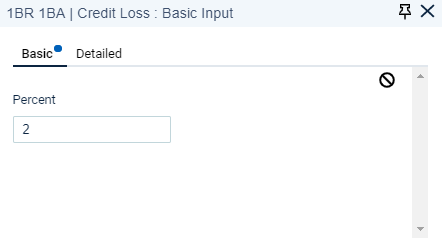
Basic Credit Loss allows for the entry of a single percentage that does not change over the analysis period.
Percent is the percentage of Scheduled Rental Revenue for the applicable Unit Type that will be utilized to calculate the Credit Loss.
Basic Credit Loss
Detailed Credit Loss
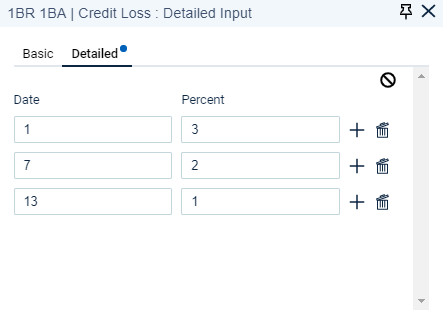
Detailed Credit Loss allows for the entry of a credit loss percentage that changes over the analysis period.
Date the credit loss percentage commences. Enter absolute (A – MM/YYYY) or relative (R – Months) dates. Relative dates are relative to the Analysis Begin date as set in the Property section on the Property Settings tab.
Note: Because the Credit Loss is calculated monthly, the date entered can vary on a monthly basis.
Percent is the credit loss percentage as of the date entered in the Date field. The final percentage entered will carry forward for the remainder of the analysis term.
adds a row beneath the current row, deletes the current row.
Detailed Credit Loss
Vacancy Loss
Vacancy Loss is where the percentage of revenue estimated to be foregone due to unleased space can be entered. Vacancy Loss is often used to achieve the assumed stabilized occupancy rate for a multifamily property (e.g., if the assumed stabilized occupancy is 90%, a vacancy loss factor of 10% would be used). Each Unit Type can have a unique Vacancy Loss amount to reflect that certain Unit Types will stabilize at a different occupancy level than others.
Press the Enter key to input data in either a Basic or Detailed state.
Basic Vacancy Loss
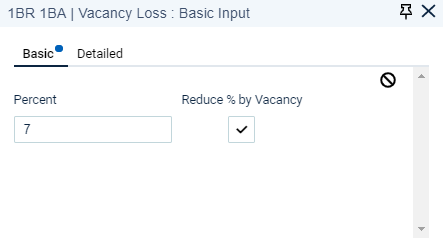
Basic Vacancy Loss allows for the entry of a single percentage that does not change over the analysis period.
Percent is the percentage of revenue for the applicable Unit Type that will be utilized to calculate the Vacancy Loss. Revenue to which the percentage is applied is calculated as Market Rent less Loss to Lease less Abatement (Loss from Absorption is not factored into the revenue calculation to which the percentage is applied).
Reduce % by Vacancy determines whether the calculated vacancy loss amount will be reduced within a month by the Loss from Absorption (i.e., units that are vacant at any point in time) for that month. Checking the box indicates that the calculated vacancy amount will be reduced.
Basic Vacancy Loss
Detailed Vacancy Loss
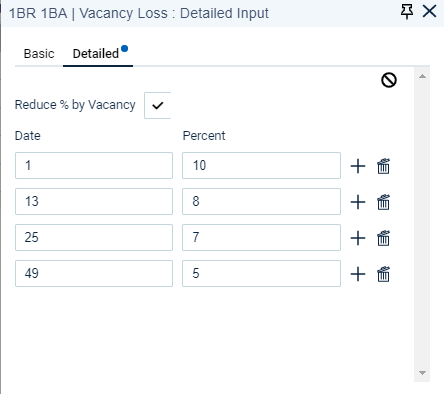
Detailed Vacancy Loss allows for the entry of a vacancy loss percentage that changes over the analysis period.
Reduce % by Vacancy determines whether the calculated vacancy loss amount will be reduced within a month by the Loss from Absorption (i.e., units that are vacant at any point in time) for that month. Checking the box indicates that the calculated vacancy amount will be reduced.
Date the vacancy loss percentage commences. Enter absolute (A – MM/YYYY) or relative (R – Months) dates. Relative dates are relative to the Analysis Begin date as set in the Property section on the Property Settings tab.
Note: Because the Vacancy Loss is calculated monthly, the date entered can vary on a monthly basis.
Percent is the percentage of revenue from the applicable Unit Type that will be utilized to calculate the Vacancy Loss as of the date entered in the Date field. The final percentage entered will carry forward for the remainder of the analysis term. Revenue to which the percentage is applied is calculated as Market Rent less Loss to Lease less Abatement (Loss from Absorption is not factored into the revenue calculation to which the percentage is applied).
adds a row beneath the current row, deletes the current row.
Detailed Vacancy Loss
Notes
A note can be entered for each Unit Type record on the Rent Roll tab.
Press the Enter key to activate the Notes field.
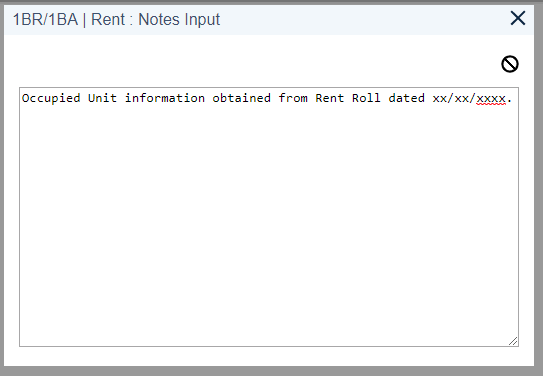
Enter text for the note. A blue dot appears next to the word “Notes” when a note exists.

Area & Unit Roll-Up Summary

Located at the bottom of the Rent Roll tab, the area and unit roll-up summary provides area/unit statistics that may be used to verify that all area/units in the building have been properly accounted for within the Rent Roll.
- Area: Total displays the area entered in the *Total Area field on the Area Measures tab.
- Area: Input displays the sum of total area entered on the Rent Roll (for each Unit Description, this amount is calculated as Area x Total Units).
- Area: Variance displays the difference between “Area: Total” and “Area: Input”.
- Units: Total displays the area entered in the *Total Units field on the Area Measures tab.
- Units: Input displays the sum of total units entered on the Rent Roll.
- Units: Variance displays the difference between “Units: Total” and “Units: Input”.
As a general rule, if area and units have been properly accounted for within the Rent Roll, the “Area: Variance” and “Units: Variance” should equal 0.
Line Items
Line Items Tab
Ctrl + Alt displays the numeric keyboard shortcut.
The Line Items tab is where line item records for a property are created, defined and edited. This tab is used for the input of all miscellaneous revenues (not sourced from a record entered on the Rent Roll), property expenses, and building capital. Line Items appearing on this tab will be grouped in the following order by Line Item Type:
- Building Capital
- Expense
- Miscellaneous Income
Acct # is the required account number that has a 20 character maximum and does not accept commas or asterisks.
Name is an optional description with a 50 character maximum. Although optional, the Line Item Name is the description that appears on the Cash Flow report.
Line Item Type is a drop-down menu of types that include:
- Misc Income: Used to input revenue not sourced from a record on the Rent Roll tab.
- Expense: Used to input property expenses that are subtracted from total revenue to calculate Net Operating Income.
- Building Capital: Used to input building level capital expenditures and/or capital reserves. Building Capital items appear below the Net Operating Income line and are subtracted from Net Operating Income to calculate Net Cash Flow.
Cash Flow check box indicates whether the line item will affect a property’s cash flow. If checked (the default), the line item will affect the property’s cash flow and if unchecked, the line item will not affect cash flow. A line item will typically be unchecked if such item does not have a direct cash flow impact.

Input Type - See "Line Item Input Types" below.
Cap & Floor
Cap represents a maximum amount for the line item record. Floor represents a minimum amount for the line item record.
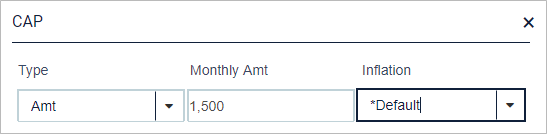
Cap & Floor Type options include:
- None - No cap or floor
- Amt - Enter value in Monthly Amt field.
Monthly Amt is the amount of cap or floor expressed on a monthly basis as of the Analysis Begin date.
Inflation is a drop-down menu of named item expedites created and defined in the Multifamily section on the Inflation tab. Inflation is used if the cap or floor increases over time.
Cap Example
A blue dot appears when a Cap or Floor is present.
Use Case: A management fee might be calculated as a specified percentage of EGR with a minimum monthly amount (e.g., 3% of EGR not less than $5,000/month). In this case, the management fee line item would be set up with a floor to reflect the monthly minimum.
Line Item Input Types
Input Types are input methods by which line item detail will be entered.
Press the Enter key to input data using one of the following Input Types:
Amount
Amount is used to enter a whole amount that may be increased by a defined inflation rate at set intervals.
Amt is the amount of the line item as of the Analysis Begin date. The amount entered here will be interpreted based on the assigned Amt Type.
Amt Type options include:
- Per Mo is Amt value interpreted on a monthly basis.
- Per Yr is Amt value interpreted on an annual basis.
Inflation is a drop-down menu of named item expedites created and defined in the Multifamily section on the Inflation tab. Inflation defines how the line item Amt will grow. Inflation will occur based upon the Effective Month for the assigned Inflation as defined on the Inflation tab.
Amount Line Item

Amt/Area
Amt/Area is used to enter an amount expressed on a per area basis that is multiplied by a defined Area Measure and may be increased by a defined inflation rate at set intervals.
Amt is the amount per area of the line item as of the Analysis Begin date. The amount entered here will be interpreted based on the assigned Amt Type.
Amt Type options include:
- Per Mo is the Amt value interpreted on a per area, monthly basis.
- Per Yr is the Amt value interpreted on a per area, annual basis.
Inflation is a drop-down menu of named item expedites created and defined in the Multifamilty section on the Inflation tab. Inflation defines how the line item Amt will grow. Inflation will occur based upon the Effective Month for the assigned Inflation as defined on the Inflation tab.
Area Measure is a drop-down menu of named items created and defined on the Area Measures tab, accessible from both the Property and Multifamily sections. An area measure is the measurement of space or number of units by which the Amt value is multiplied to determine the value for the line item.
Use Case: Amt/Area may be used to model variable expenses, whereby an expense rate per area is multiplied by an occupied area measure (square footage or units) to determine the total amount of the expense.
Amt/Area Line Item

% EGR
% EGR is used to multiply Effective Gross Revenue by a single percentage.
Percent is the percentage by which Effective Gross Revenue will be multiplied to determine the line item value.
Use Case: % EGR is typically used to model management fees expressed as a percentage of Effective Gross Revenue.
% EGR Line Item

% Line Item
% Line Item is used to create a line item that is a percentage of:
- (i) one or more existing line items
- (ii) one or more system line items (line items that are not input by the user but rather auto-defined by rDCF, such as Scheduled Base Rent, EGR, etc.)
- a combination of (i) and (ii)
Line Item Type is a drop-down menu that filters the Line Item list.
- "All" lists all Line Item types, both user input and system line items.
- Misc Income, Expense, and Building Capital lists the existing user input line items for the corresponding Line Item Type (Expense: Non-Recov does not apply to multifamily properties).
- System Line Items lists those line items that are auto-defined by rDCF.
Search is a text search box that filters the Line Item list.
Display allows for additional filtering of the Line Item list. Options include:
- All displays all Line Items for the selected Line Item Type.
- Non-zero displays all Line Items for the selected Line Item Type for which the Percent column is not 0 or null.
Line Item is a list of existing Line Items filtered by the selected Line Item Type, Display and/or Search. Each line item is displayed in the following fashion: <Line Item Type>:<Acct# or System Line Item Code>-<Name>.
Percent is the percentage value to be applied to each of the selected Line Items.
% Line Item

Detailed
Detailed is used to enter line items on a monthly basis for a user-specified number of years, after which inflation will commence.
Years of Detailed Input is used to enter the number of years (default = 2) of detailed entry before inflation takes effect. Enter the number of years of detailed input, and Tab out or mouse click into another cell. A column will be enabled for each year of detailed input, with each column allowing input on a monthly basis.
Note: The maximum number of years for Detailed entry is equal to the Term specified on the Property Settings tab in the Property section plus two years.
Inflate From Analysis Begin Date determines whether the detailed amounts entered will be subject to inflation from the Analysis Begin Date using the inflation rate defined in the adjacent Inflation field. If the box is unchecked, the detailed amounts entered will be reflected in each month/year of the analysis at the exact amounts entered on this screen. If the box is checked, the detailed amounts entered will be inflated from the Analysis Begin Date utilizing the inflation rate defined in the adjacent Inflation field.
Inflation is a drop-down menu of named item expedites created and defined in the Multifamily section on the Inflation tab. Line Item inflation will commence in the year subsequent to the last year entered in the detailed line item screen. Inflation will occur based upon the Effective Month for the assigned Inflation as defined on the Inflation tab.
Note: Inflation will inflate the hard coded amounts entered in the final year of detailed input, maintaining monthly integrity. For example, if the final year of Detailed input is Year 5 and amounts are entered in Months 3, 6, 9 and 12 of Year 5, the Year 5 amounts will be subject to inflation and will appear in subsequent years in Months 3, 6, 9, and 12.
Hint: If you want to "stop" a Detailed input (i.e., make the input zero after a certain number of years), you must add one additional year with all monthly entries of zero. For example, if you want 3 years of Detailed input with zeros thereafter, select 4 years of Detailed input and enter all zeros for Year 4.
Enter monthly amounts for the line item. This may be accomplished a number of ways:
- Input an amount for each month within the grid. The Total field will reflect the annual summation of the monthly amounts entered.
- Input an amount in the Total field. The monthly amounts for that year will be auto-filled by dividing the annual amount by 12.
- Input an amount for any month and click the down arrow button to the right of the amount entered or use the hot key combination Ctrl + Shift + X. The monthly amount entered will auto-fill to all subsequent months within that year.
- Populate the amounts for one or more years and click the right arrow button to the right of the annual total for the last year populated or use the hot key combination Ctrl + Shift + X. The annual amounts, with monthly detail, will auto-fill for all subsequent years. For example, if 3 years of detailed input are desired, Year 1 is filled out, and if the arrow button to the right of the annual total for Year 1 is clicked, Years 2 & 3 will auto-fill with the exact annual and monthly detail as Year 1.
Detailed Line Item
Detailed Per Area
Detailed per Area is used to enter line items on a monthly per area basis for a user-specified number of years, after which inflation will commence. The per area amounts entered are multiplied by an Area Measure as defined by the user.
This Input Type works in an identical fashion to Detailed (see "Detailed" above) with the following two exceptions:
- Monthly amounts are entered as amounts per area rather than as whole dollar amounts.
- There is an additional field for Area Measure, by which the amount per area is multiplied. Area Measure is a drop-down menu of named items created and defined on the Area Measure tab, accessible from both the Property and Multifamily sections. The default is *Total Area.
Detailed Per Area
Detailed % of Line Item
Detailed % of Line Item is used to create a line item that is a changing percentage (either monthly or annually) of one existing line item.
Year of Detailed Input is used to enter the number of years (default = 2) for which a detailed percentage will be entered. Enter the number of years of detailed input and Tab out or mouse click into another cell. A column will be enabled for each year of detailed input, with each column allowing input on a monthly basis.
Note: The maximum number of years for detailed entry is equal to the Term specified on the Property Settings tab in the Property section plus two years.
Select one existing Line Item from the drop-down menu for which a detailed percentage will be applied.
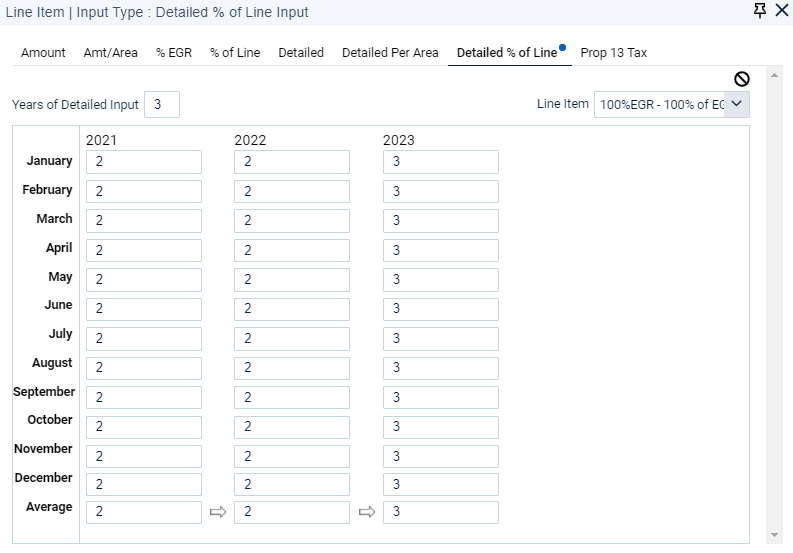
Enter percentage values. Each monthly percentage will be multiplied by the corresponding monthly line item amount. Therefore, the annual percentage equivalent should be entered within each monthly field (e.g., for 3%, "3" would be entered for every month rather than “.25”). Data entry may be accomplished in a number of ways:
- Input a percentage for each month within the grid. The Average field will reflect the annual average of the monthly percentages entered.
- Input a percentage in the Average field. The monthly percentages for that year will be auto-filled with the same percentage as the annual Average percentage entered.
- Input a percentage for any month and click the down arrow button to the right of the percentage entered or use the hot key combination Ctrl + Shift + X. The monthly percentage entered will auto-fill to all subsequent months within that year.
- Populate the percentages for one or more years and click the right arrow button to the right of the Average for the last year populated or use the hot key combination Ctrl + Shift + X. The annual average percentages, with monthly detail, will auto-fill for all subsequent years. For example, if 3 years of detailed input are desired, and Year 1 is filled out, if the right arrow button to the right of the annual total for Year 1 is clicked, Years 2 & 3 will auto-fill with the exact annual and monthly detail as Year 1.
Hint: If you want to stop a Detailed % Of Line input (i.e., make the percentage input zero after a certain number of years), you must add one additional year with all monthly entries of zero. For example, if you want 3 years of detailed input with zeros thereafter, select 4 Years of Detailed Input and enter all zeros for Year 4.
Note: The Line Item field only allows for the selection of one previously created Line Item. System Line Items are not available and existing Line Items may not be combined here (unlike the functionality for % Line Item entries). If you would like to create a Detailed % Of Line Item using System Line Items or a combination of existing Line Items:
- Create a % of Line Item that does not impact cash flow utilizing the proper percentage of the System Line Item(s) and/or existing Line Item(s) (this will typically be 100%).
- Select the newly created Line Item in the "Line Item" field on the Detailed % of Line Item screen.
Example: The management fee for a building is projected to be 2% of EGR in Years 1 and 2 of the analysis, changing to 3% of EGR in Year 3 and thereafter. Steps to create this are as follows:
- Add a Line Item that does not impact cash flow using the "% Line Item" carousel state that is equal to 100% of EGR.
- Add a second Line Item that does impact cash flow using the "Detailed % of Line Item" carousel state. Enter "3" for Years of Detailed Input, select the Line Item created in step 1 from the "Line Item" field drop-down menu, and enter "2" in every month for Years 1 and 2 and "3" in every month in Year 3.
Detailed % of Line Item
Prop 13 Tax
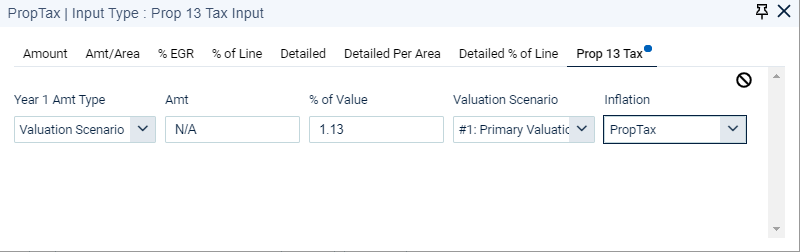
Prop 13 Tax is used to establish real estate tax expense amounts for (i) year 1 of the rDCF analysis based upon the Analysis Begin Date entered in the Property section on the Property Settings tab; and (ii) the year subsequent to the Valuation Term (i.e., hold period) as entered in the Property section on the Valuation Settings tab (this year is often used to calculate the reversion value of a property included in the stream of cash flows that is discounted to arrive at such property's value).
Proposition 13 applies only to properties located in California and was passed as an amendment to the California Constitution in June 1978. The law established the concepts of a base year value for property tax assessments, and limitations on the tax rate and assessment increase for real property. Under Prop 13, all real property has base year values that are established based upon a reassessment that occurs when there is a change in ownership (or for new construction, as of the date of completion), a cap on increases in the assessed value of no greater than 2% each year (until there is another change in ownership), and a limit on property taxes equal to 1% of the assessed value (plus additional voter-approved taxes) (SOURCE: Santa Clara County Office of the Assessor website).
The implication of this law for discounted cash flow analysis and valuation is threefold:
- For a property transaction (acquisition or sale), the real estate tax expense needs to be re-set in year one of the new owner's hold period based upon the valuation of the property as of the date of ownership change. If the valuation is based upon the discounting of future cash flows, then the real estate tax expense also needs to be re-set in the year following the hold period to calculate the reversion value of the property.
- For the valuation of a property that is not part of a transaction (i.e., for an appraisal or asset management purposes), although the real estate tax expense does not need to be re-set in year one of the hold period, the expense does need to be re-set in the year following the hold period to calculate the reversion value of the property.
- The real estate tax expense inflation rate should be set at 2% for the entirety of the hold period.
Year 1 Amt Type defines how the real estate tax expense in year 1 will be determined. The available drop-down selections are:
- Valuation Scenario: The year 1 real estate tax expense will be determined by using the valuation assumptions as defined in the "Valuation Scenario" field, and multiplying the resultant value by the percentage entered in the Percent of Value field. If the Valuation Type for the applicable Valuation Scenario is (i) "DCF", then the resultant value will be calculated using the discounted cash flow methodology; (ii) "Direct Cap", then the resultant value will be calculated using the direct capitalization method; (iii) "Specified Price", then the resultant value will be the entered price.
- Amount: The year 1 real estate tax expense amount is entered by the user.
Note: For either Year 1 Amt Type selection, if the Valuation Type is "DCF" or "Specified Price", then a reversion value still needs to be calculated for the year following the hold period (i.e., the reversion year). This value is calculated using (i) the valuation settings entered for the valuation scenario as selected in the "Valuation Scenario" field if the Year 1 Amt Type is set to "Valuation Scenario"; or (ii) the valuation settings entered for the default valuation scenario as determined in the Property section on the Valuation Settings tab if the Year 1 Amt Type is set to "Amount" (even if entered as a valuation setting, cost of sales are excluded from the reversion value in the determination of real estate taxes for the year subsequent to the hold period). If the Valuation Type is "Direct Cap", then no reversion value is calculated for the reversion year and the real estate tax amount continues to increase by the rate entered in the "Inflation" field (see below).
Amount is used to enter the year 1 real estate tax expense if the Year 1 Amt Type is set to "Amount" (if the Year 1 Amt Type is set to "Valuation Scenario" this field is not applicable).
Percent of Value is multiplied by the (i) initial property valuation when the Year 1 Amt Type is set to "Valuation Scenario"; and (ii) the reversion value to establish the real estate tax expense amounts in (i) year 1 of the rDCF analysis period; and (ii) the year following the assumed hold period, respectively.
Valuation Scenario is a drop-down of the valuation scenarios entered in the Property section on the Valuation Settings tab and is used to define the valuation settings used to determine the year 1 value and the reversion value when the Year 1 Amt Type is set to "Valuation Scenario" (if the Year 1 Amt Type is set to "Amount", this field is not applicable).
Inflation is a drop-down menu of named item expedites created and defined on the Inflation tab. Inflation defines how the Prop 13 expense will grow (as noted above, per California law, this inflation is typically set to 2%).
Helpful Hint: Regardless of the Report Begin Date as entered in the Property section on the Property Settings tab or the Valuation Date as entered in the Property section on the Valuation Settings tab, the calculated year 1 expense will always be assumed to occur in year 1 of the analysis (i.e., the first year beginning on the Analysis Begin Date). If the selected Valuation Scenario uses a different Valuation Date than the Analysis Begin Date, a validation warning will appear. If you wish to use such different Valuation Date, it is recommended that the Inflation applied to real estate taxes be changed to detailed input with 0% growth from the Analysis Begin Date to the Valuation Date to insure that the calculated real estate tax amount for year 1 applies to the first year of the valuation period.
Warning: If an Underwriting Workbook is run for a property that uses Prop 13 Tax to establish the real estate tax expense, and the default valuation assumptions (i.e., cap rate, discount rate, hold period) are subsequently changed within such Underwriting Workbook, the real estate tax expense will not change to reflect the valuation assumption changes. Stated differently, the real estate tax expense in the Underwriting Workbook does not dynamically change as changes are made to the valuation assumptions in the workbook. To see the impact of valuation changes on the real estate tax expense, the user must change the valuation assumptions directly within rDCF on the Valuation Settings tab, recalculate the file, and run the Underwriting Workbook once again.
Prop 13 Tax
Inflation
Ctrl + Alt displays the numeric keyboard shortcut.
The Inflation tab is used to create named inflation rates that define how inputs grow over time within the analysis period.
Inflation named items are applicable in the following areas of the application:
- Line Items
- Rent Roll: Rent, Make Ready & Commissions
There are seven (7) named inflations that are automatically included with each property file:
- *BldgCapital - Building Capital Inflation
- *Commission - Commission Inflation
- *Expense - Expense Inflation
- *MakeReady - Make Ready Cost Inflation
- *MarketRent - Market Rent Inflation
- *MiscInc - Misc. Income Inflation
- *None - No Inflation
These named inflations have (i) a darker gray background in the Code and Name fields, (ii) a Code that is preceded by an "*," and (iii) Codes and Names that are uneditable.
They also have a default Input Type of "Basic" and a default Amt (amount) of "0" which may be edited by the user (with the exception of "*None - No Inflation," which has an uneditable Input Type of "None").
Info: Read about #, Code and Name throughout the Application
Inflation Input Types
Input Types are input methods by which Inflation detail will be entered.
Press the Enter key to input data in either a Basic or Detailed state.
None
*None is the non-editable, system-defined named Inflation (i.e., no inflation). *None should be used when the market assumption is assumed to remain flat throughout the analysis period.
Basic Inflation
Basic Inflation allows for single value that does not change over the analysis period.
Amt is the percentage value inflation rate that is interpreted by the assigned Compound Type. 3% should be entered as "3" rather than ".03".
Compound Type interprets how the value entered in the Amt field inflates the assumption to which it is attached. Options include:
- Annual (default) inflates the assumption to which it is attached on an annual basis.
- Monthly inflates the assumption to which it is attached on a monthly basis by converting the annual Amt entered to a corresponding compounded monthly amount that "trues-up" to the annual inflation Amt on the Effective Month.
Effective Month determines the month upon which the annual inflation value entered will occur (for "Annual" Compound Type) or will "True-up" (for "Monthly" Compound Type). Options include:
- Market Effective Month (default) - Inflation (or true-up) will occur on the month identified as the Market Effective Month in the Property section on the Property Settings tab.
- Any month - Inflation (or true-up) will occur on the month selected.
Example 1:
- Analysis Begin: 1/1/2021
- Market Effective Month: Analysis Begin
- Amt: 3
- Effective Month: Market Effective Month
| Inflation Factor | ||
| Date | Annual | Monthly |
| 1/21 | 1.0000 | 1.0000 |
| 2/21 | 1.0000 | 1.0025 |
| 3/21 | 1.0000 | 1.0049 |
| 4/21 | 1.0000 | 1.0074 |
| 5/21 | 1.0000 | 1.0099 |
| 6/21 | 1.0000 | 1.0124 |
| 7/21 | 1.0000 | 1.0149 |
| 8/21 | 1.0000 | 1.0174 |
| 9/21 | 1.0000 | 1.0199 |
| 10/21 | 1.0000 | 1.0224 |
| 11/21 | 1.0000 | 1.0249 |
| 12/21 | 1.0000 | 1.0275 |
| 1/22 | 1.0300 | 1.0300 |
| 2/22 | 1.0300 | 1.0325 |
| 3/22 | 1.0300 | 1.0351 |
| 4/22 | 1.0300 | 1.0376 |
| 5/22 | 1.0300 | 1.0402 |
| 6/22 | 1.0300 | 1.0428 |
| 7/22 | 1.0300 | 1.0453 |
| 8/22 | 1.0300 | 1.0479 |
| 9/22 | 1.0300 | 1.0505 |
| 10/22 | 1.0300 | 1.0531 |
| 11/22 | 1.0300 | 1.0557 |
| 12/22 | 1.0300 | 1.0583 |
| 1/23 | 1.0609 | 1.0609 |
Example 2:
- Analysis Begin: 1/1/2021
- Market Effective Month: Analysis Begin
- Amt: 3
- Effective Month: July
| Inflation Factor | ||
| Date | Annual | Monthly |
| 1/21 | 1.0000 | 1.0149 |
| 2/21 | 1.0000 | 1.0174 |
| 3/21 | 1.0000 | 1.0199 |
| 4/21 | 1.0000 | 1.0224 |
| 5/21 | 1.0000 | 1.0249 |
| 6/21 | 1.0000 | 1.0275 |
| 7/21 | 1.0300 | 1.0300 |
| 8/21 | 1.0300 | 1.0325 |
| 9/21 | 1.0300 | 1.0351 |
| 10/21 | 1.0300 | 1.0376 |
| 11/21 | 1.0300 | 1.0402 |
| 12/21 | 1.0300 | 1.0428 |
| 1/22 | 1.0300 | 1.0453 |
| 2/22 | 1.0300 | 1.0479 |
| 3/22 | 1.0300 | 1.0505 |
| 4/22 | 1.0300 | 1.0531 |
| 5/22 | 1.0300 | 1.0557 |
| 6/22 | 1.0300 | 1.0583 |
| 7/22 | 1.0609 | 1.0609 |
| 8/22 | 1.0609 | 1.0635 |
| 9/22 | 1.0609 | 1.0661 |
| 10/22 | 1.0609 | 1.0688 |
| 11/22 | 1.0609 | 1.0714 |
| 12/22 | 1.0609 | 1.0741 |
| 1/23 | 1.0609 | 1.0767 |
Detailed Inflation
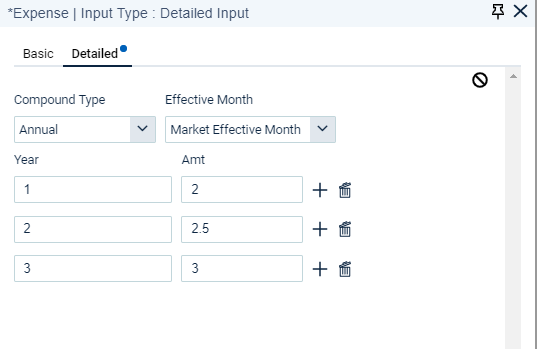
Detailed Inflation allows for changing rates on an annual basis.
Compound Type interprets how the value entered in the Amt field inflates the assumption to which it is attached. Options include:
- Annual (default) inflates the assumption to which it is attached on an annual basis.
- Monthly inflates the assumption to which it is attached on a monthly basis by converting the annual Amt entered to a corresponding compounded monthly amount that "trues-up" to the annual inflation Amt on the Effective Month.
Effective Month
- Market Effective Month (default) - Inflation (or true-up) will occur on the month identified as the Market Effective Month in the Property section Property Settings tab.
- Any month - Inflation (or true-up) will occur on the month selected.
Year is the year of the analysis Term commencing on the Analysis Begin date. It is auto-incremented by 1 year as new rows are added and is read-only. The inflation value entered for the final year of input will continue for the remainder of the analysis.
Amt is the percentage value inflation rate interpreted by the assigned Compound Type. 3% should be entered as "3" rather than ".03".
adds a row beneath the current row, deletes the current row.
Detailed Inflation
Area Measures
Ctrl + Alt displays the numeric keyboard shortcut.
Accessible from both the Property and Multifamily sections, the Area Measures tab is used to:
- Define system default area measures (such as *TotalArea - Total Property Area and *TotalUnits - Total Units).
- Create named space measurements for Line Item multipliers where the line item is entered as Amt/Area (e.g., occupied area measures used to create variable expenses).
Area Measure named items are referenced via combo box drop-down menus in the following areas of the app (displays the Code):
- Line Items section > Input Type: Amt/Area > Area Measure field drop-down menus
- Line Items section > Input Type: Detailed Per Area > Area Measure field drop-down menus
- Property section > Area Measure tab > Input Type: Percent > Area Measure column drop-down menu
Area Measure Input Types
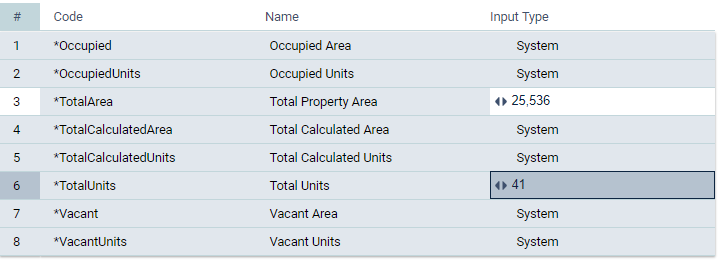
An asterisk prefix (*) indicates that the item is system defined and grayed-out areas indicate the area measure is immutable (i.e., non-editable system defined).
System
*Occupied - Occupied Area calculates occupied square footage for the entire property based upon rent roll entries. Non-editable system defined (i.e., no user entry).
*OccupiedUnits - Occupied Units calculates occupied multifamily units for the entire property based upon rent roll entries. Non-editable system defined (i.e., no user entry).
*TotalArea - Total Property Area is used to enter the total area of the property (i.e., total Net Rentable Area or Gross Leasable Area) and is typically entered using an Input Type of either Basic (property size remains static for the entire analysis term) or Detailed (property size changes during the analysis term, likely due to re-measurement or new construction).
*TotalCalculatedArea - Total Calculated Area is the sum of the square footage for all multifamily units entered on the rent roll: occupied and vacant. Non-editable system defined (i.e., no user entry).
*TotalCalculatedUnits - Total Calculated Units is the sum of all multifamily units entered on the rent roll: occupied and vacant. Non-editable system defined (i.e., no user entry).
*TotalUnits - Total Units is used to enter the total number of multifamily units of the property and is typically entered using an Input Type of either Basic (number of total units remains static for the entire analysis term) or Detailed (number or total units changes during the analysis term, likely due to reconfiguration of existing units and/or new construction).
*Vacant - Vacant Area calculates vacant square footage for the entire property based upon rent roll entries. Non-editable system defined (i.e., no user entry).
*VacantUnits - Vacant Units calculates vacant multifamily units for the entire property based upon rent roll entries. Non-editable system defined (i.e., no user entry).
System Area Measures
Info: Read about #, Code and Name throughout the app
Press the Enter key to input data using one of the following Input Types:
Basic Area Measure
Basic Area Measures are used when the area measure as entered in the Amt field stays constant for the entire analysis period.
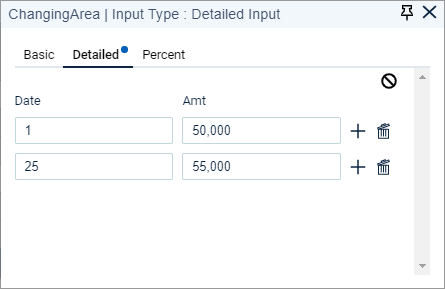
Detailed Area Measure
Detailed Area Measures are used for area measures that change over time during the analysis period.
Date the area measures commences. Enter absolute (A - MM/YYYY) or relative (R - #) dates. Relative dates are relative to the Analysis Begin date.
Amt is the area measure (i.e., square footage) as of the corresponding date.
 adds a row beneath the current row,
  deletes the current row.
Detailed Area Measure
Helpful Hint: Detailed area measures are typically used when (a) a property is re-measured during the analysis period or (b) additional area is added to the property as a result of construction/redevelopment of the property during the analysis period.
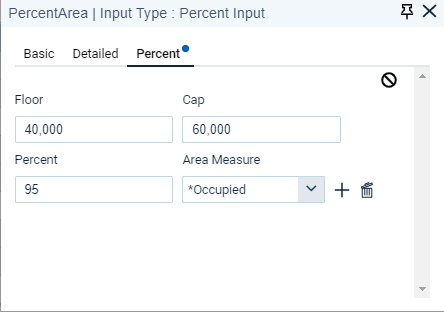
Percent Area Measures
Percent Area Measures are used when an area measure is a percentage of one or more existing area measures and may be constrained by a floor or cap.
Floor (not required) is the minimum area measure value (i.e., the calculated value cannot be less than this amount).
Cap (not required) is the maximum area measure value (i.e., the calculated value cannot be greater than this amount).
Percent is a percentage value (70% is entered as "70", not "0.70").
Area Measure is a drop-down menu of all other Area Measures.
adds a row beneath the current row, deletes the current row.
Percent Area Measure
Comments
0 comments
Article is closed for comments.