
Import and assign budget Roles & Permissions and Portfolios to users within the current budget.
Article contents:
Import Users
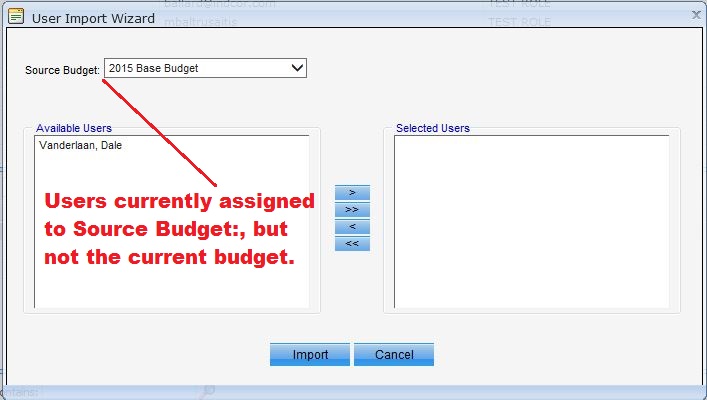
- Click the "Import Users" button on the pane 1 toolbar or right-click select from the menu; the "Import Users Wizard" window appears.
- Source Budget: Budget from which to import users
- Available Users > >> << < Selected Users
- "Available" are users that are available but not assigned to the current budget.
- "Selected" are the users to import into current budget.
- Click "Import."
Update Users
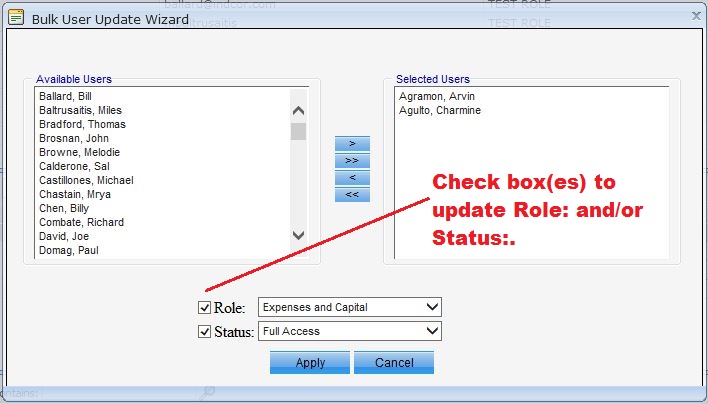
- Click the "Update Users" button on the pane 1 toolbar or right-click select from the menu; the "Update Users Wizard" appears.
- Available Users > >> << < Selected Users
- Role: Roles & Permissions of Type = Budget. Check if updating user budget roles.
- Status: Check if updating user statuses.
- Disabled - Access to the budget is denied.
- Full Access - Access to all aspects of the application assigned.
- Reports Only - Access only to the Reports section.
- rSquared - Designation for rSquared personnel
- Click "Apply."
Assign Portfolio(s)
- Select the User.
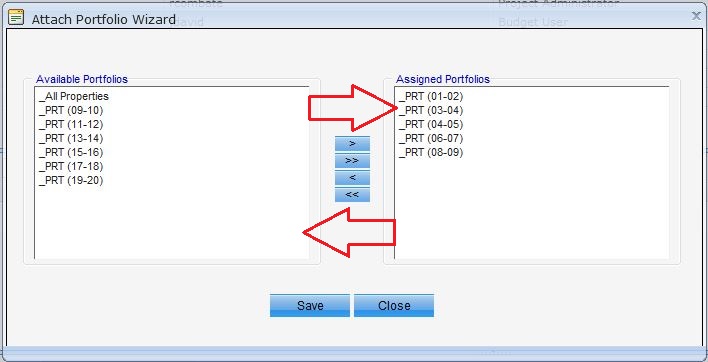
- Click the "Attach Portfolio" button on the pane 2 toolbar or right-click select from the menu; the "Attach Portfolio Wizard" window appears:
- Available Portfolios > >> << < Assigned Portfolios - Move over by double clicking or highlighting and using the arrows.
- Click "Save."
Comments
0 comments
Article is closed for comments.