
The Expense Tab is initially populated with a building's operating expenses via an import from the accounting system. Operating expenses are amounts which are paid to operate and maintain income producing property, usually paid by the landlord and may be subject to reimbursement by the tenant via expense recoveries. As opposed to non-recurring capital expenditures, operating expenses are typically recurring expenditures. The grid displays each account's balance, by month, for the budget year and each budget year has a separate tab. The first row of each account contains the account number with no description and is preceded by a group/ungroup selector; this is a summary row which cannot be edited. Changes to detail lines will roll up into this balance.
Article contents:
Columns
Account - Account number with appended account name from the accounting system. Accounts displayed on the Expense Tab are assigned Display = Expense in the Chart of Accounts.
Description - Describes the nature of the expense booked to the respective account. Balances residing in a row with ***ACTUALS*** in the field are actual amounts extracted from the accounting system which are not editable.
Input Mode - The method with which expenses are allocated during the budget year. The default Input Mode is Monthly. Monthly is the only Input Mode that allows direct input into the grid. The Input Mode must be the same for all years for a given detail line.
Value/Selection - Blank for balances loaded via an Import from Excel or an accounting system. For manual inputs using Monthly, Annual, Quarterly or Semi-Annual, a dollar amount is entered. Named Rates, $/SF/YR, $/SF/MO (Area Measures) and % of Line Item (Formulations) are driven off of inputs into dialogue boxes geared toward the selected Input Mode.
Yrs Input - Available if budgeting for multiple years.
Number of years that accepts manually inputs; out years can be controlled by Inflation. Can be set across an entire budget on the Budget Admin General page.
Inflation - Available if budgeting for multiple years.
Automatically calculates the increase in monthly amounts entered and populates these amounts into the next budget year(s).
When budgeting for multiple years, the application will automatically calculate the increase in monthly amounts entered in Year 1 and populate these amounts into the next budget year.
The Yrs Input field must be 1 and the Inflation field must be populated with the percentage.
The Input Mode in Year 2 defaults to System and the monthly amounts are not editable.
In an instance where a monthly amount in Year 2 needs to be changed, the Yrs Input field in Year 1 must be changed to 2 and then saved. This will automatically update the Year 2 Input Mode to Monthly and the monthly amounts can be changed and saved.
Info: Market Items Inflation
Note: The Input Mode must be the same for all years for a given detailed account line. For example, if an account (say window washing) was entered via the Quarterly Input Mode on the first tab (year), the Input Mode for that account on subsequent tabs (years) must also be Quarterly.
Monthly and Current Year Balances - Amounts imported from the source accounting system, Excel, or manually entered. Tabs will be added over the right most column if the budget period exceeds one year.
$/SF - Annual total ÷ Net Rentable Area per the Building Tab.
Notes - Read more: Notes
Toolbar Utilities
Filter By:
- Select the Filter By: parameter: All, Description, Account Code, Years Input, Input Mode, Inflation
- Enter text/value in box or select from available accounts, Input Modes and/or Inflation(s).
- Click "Filter."

Show Variance
In order to quickly determine how budgeted income and expense items relate to income and expenses in another budget or scenario, a User can use the Show Variance feature located to the right of the account Filter icon.
- Clicking in the Comparison Budget field exposes a menu listing the available comparison budgets (Budget Admin Variances).
- Select the budget that you would like to compare.
- Click "Show Variance;" column is inserted at the far right between the $/SF and Notes columns displaying only the variance, by line item, between the current budget and the comparison budget.
Info: This is a quick look at how the current budget compares to another scenario. More formal and detailed analysis is done via the Variance tab.

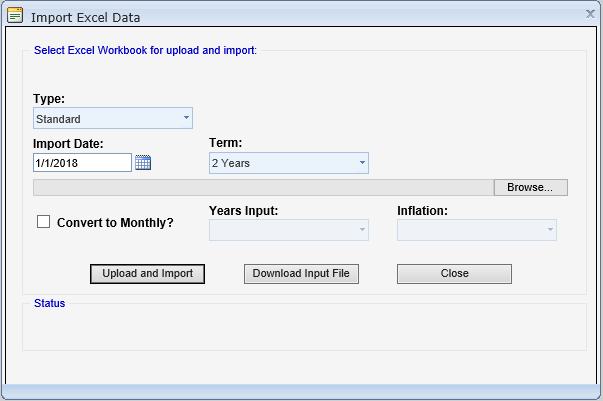
Import from Excel
Info: Import Expenses / Import From Excel
View Budget Detail & Group by Account
View Budget Detail expands all accounts so that all accounts/detail lines are visible in the grid.
Group by Account collapses all detail lines, so that only summary level accounts are visible in the grid.
Adding Expenses
Expenses can be added manually or via an Import from Excel.
Manual:
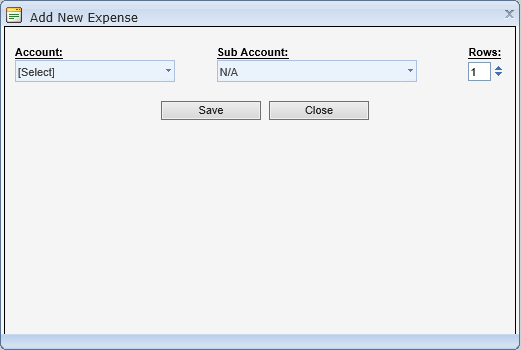
- Click "Add" on the toolbar or right-click select "Add New Expense;" the "Add New Expense" window appears.
- Choose the Account: and Sub Account:, if applicable.
- Select the number of Rows to add by using the arrows or by directly entering a value.
- Click "Save" and placeholders will be added to the Expense grid.
- To add a description, click in the Description field; the field opens for entering text (max 250 characters).
- Select an Input Mode by clicking in the column; a drop-down list appears exposing all available. The default Input Mode is Monthly.
- For types of Monthly, Annual, Quarterly or Semi-Annual, enter the budgeted amount in the Value/Selection column. The application will allocate the amount accordingly.
Tip: While in edit mode, right-clicking a row and selecting "Copy" adds an identical account row. Editable rows will appear in white while not editable summary rows will remain gray.
Edit
Alert: Account summary rows shaded light grey cannot be edited; they are totals of the accounts below.
Delete
In order to delete, the Expense grid must be in edit mode.
Note: By design, the application does not have a delete button on the toolbar in order to prevent accidental deletions.
View Details
On any of the Expense style budgeting tabs, select an account detail line and right-click select "View Details." The "Multi Year Single View" window appears displaying the account code and description, year, inflation, monthly buckets, and yearly totals. This utility is beneficial in multi-year budgets; you can view all years in a single view rather than using the yearly tabs. Additionally, the window contains an "Export to Excel" button.

Comments
0 comments
Article is closed for comments.