
Alert: Import Actuals is only available for RISE clients.
In this article:
Import at the Client level
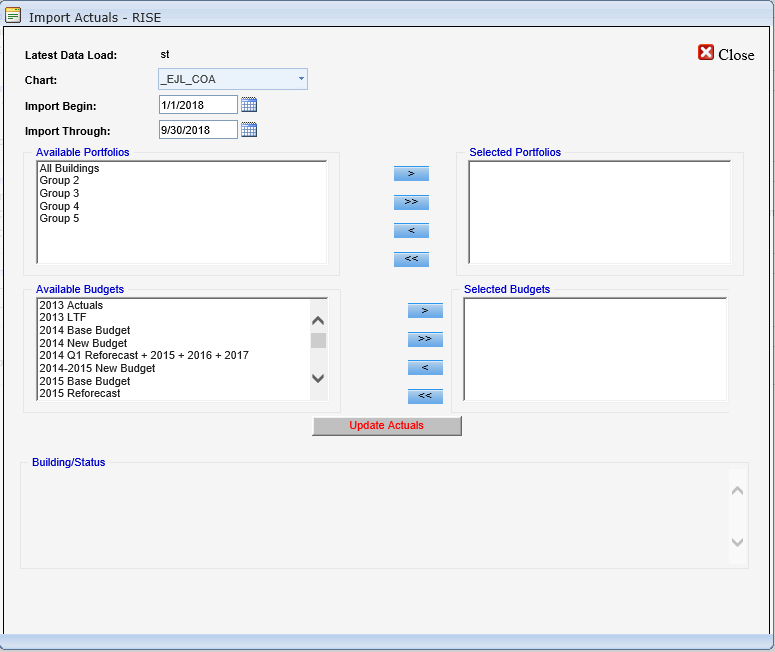
Located on the Client Admin General toolbar, Import Actuals (formerly Actuals - RISE) allows a user to import actuals from their RISE data by Portfolio and Budget.
Directions at the Client level:
- On the toolbar, click the "Import Actuals" button; the "Import Actuals - RISE" window appears.
- Apply the following parameters:
- Latest Data Load: Most current RISE data available
- Chart: Chart of Accounts
- Import Begin: Import start date
- Import Through: Actuals through date
- Available Portfolios > >> << < Selected Portfolios
- Available Budgets > >> << < Selected Budgets
- After assigning the parameters, click "Update Actuals."
- User will receive a status email when the update is complete stating if any imported accounts need to assigned a type and display mode and to add them to any formulations for reports.
Import at the Budget and Building levels
Import Actuals is located on both the Budget Admin General (Portfolio load) and Building Admin General (single Building load).
Directions at the Budget level:
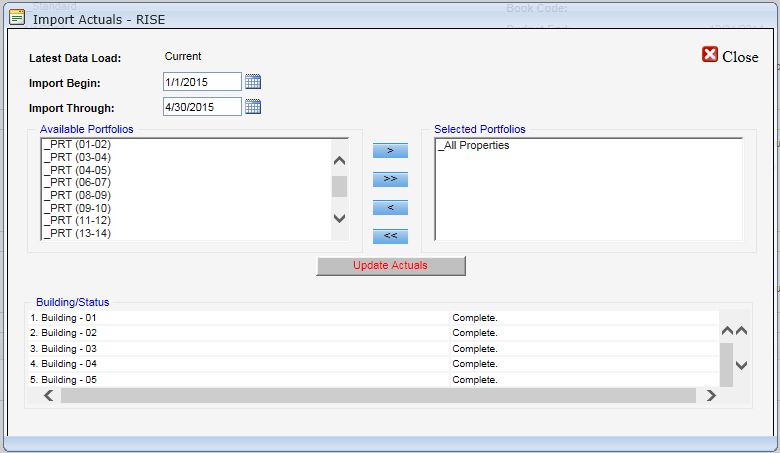
- Click the "Import Actuals" button; the "Import Actuals - RISE" window appears.
- Latest Data Load: Most recent RISE data available
- Import Begin: Defaults to beginning of budget term. Enter date manually or use the calendar icon
- Import Through: Defaults to last day of the past month. Enter date manually or use the calendar icon.
- Available Portfolios > >> << < Selected Portfolios - Select and move from Available to Selected by double-clicking and/or using the arrows.
- Click "Update Actuals." The Building/Status field displays a progress list of all buildings in the Selected Portfolio(s).
Directions at the Building level:
- Click the "Import Actuals" button; the "Import Actuals - RISE" window appears.
- Latest Data Load: Current, most recent RISE data available
- Import Begin: Defaults to beginning of budget term. Enter date manually or use the calendar icon.
- Import Through: Defaults to last day of the past month. Enter date manually or use the calendar icon
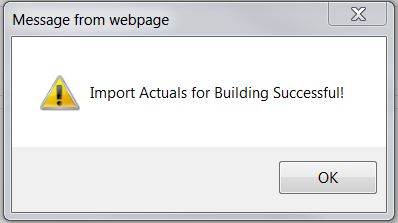
- Click "Update Actuals."

Comments
0 comments
Article is closed for comments.